How to Repair Outlook and Convert OST to PST?
Repair Outlook OST PST files with Outlook Recovery Wizard. Outlook recovery instruction describes how to repair data from damaged PST and OST files and recover Outlook data and convert OST to PST format.
Outlook Import Software Instructions
- Outlook Import – Step by step description of eml to outlook importing procedure or how to move eml and msg files into MS Outlook.
- Outlook Export – Description of Outlook data extraction procedure, how to export Outlook contacts, emails, calendar, notes, attachments and other items.
- Outlook Recovery – How to repair damaged OST or PST file, convert OST to PST format.
There are many cases when your Outlook may stop working and start asking you to repair Outlook PST file using scanpst.exe (scanost.exe for OST files) tool. The power failure and file system error can make OST or PST file unusable. After trying the scanpst utility you will be surprised that your recovered file is truncated to 2Gb and a lot of information missed. So it is better to use special tool which designed especially to repair Outlook data after multiple possible PST and OST damage scenarios, which is more powerful than free scanpst tool.
Outlook Repair and PST / OST Recovery
Outlook Repair procedure is very simple.
It is very important: Please close Microsoft Outlook if it is launched. Check the system tray and ensure that Outlook icon disappears and it is not accessing the source OST / PST file. If you would like to recover or convert OST / PST file which is placed to the network, please make the local copy of it and process the file copy. It is always good idea to make a backup copy of your source data.
- Download Outlook Recovery Wizard tool, install it to the system where 32-bit Outlook edition is installed and configured and run the tool.
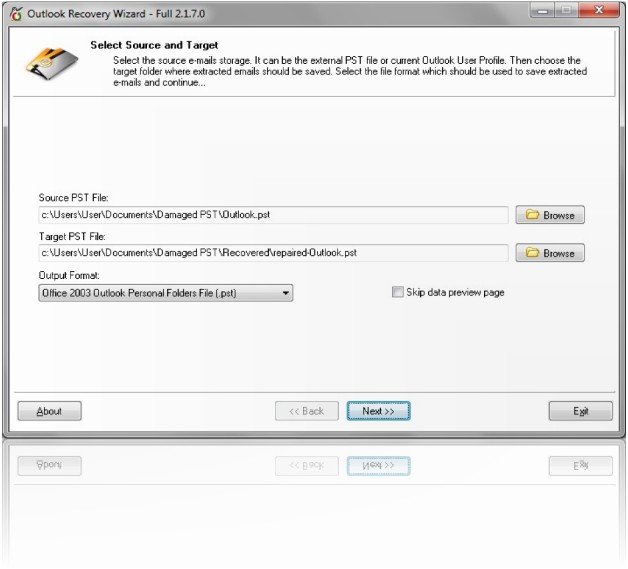
- Type in or select the Source PST (OST) file. You may press Browse button and navigate to the folder where your PST / OST file is located.
- Target PST file path and name will be suggested automatically by the Recovery Wizard. It is recommended to change the location to the folder which is not the same as the directory of the source file. You may select the target folder using the Browse button.Top

The output file format is set as Outlook 2003 by default but you can change it. You need to do it in case if you want to use the recovered / converted PST file in Outlook of previous version (2000, 2002). - If you would like to speed up the recovery, turn on the special option which allows to skip the data preview stage. If this option is enabled the program will read and immediately save the recovered data without pause on preview.Turn “Skip data preview page” option ON if the output file is not generated. The problem may happen in some cases when the third party program (antivirus tool, phone contact manager) or Outlook add-in are blocking access to the Outlook data structure. Top
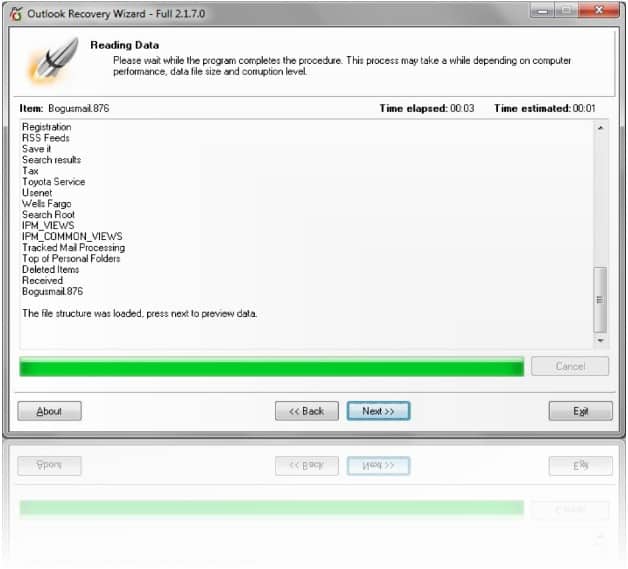
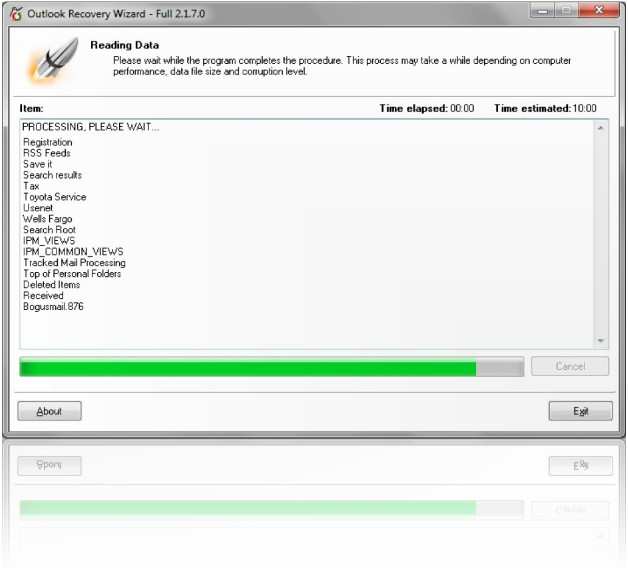
- Press Next button. Outlook Recovery Wizard will start reading the source file data. It will display the segments which can be found and read. Please do not run Outlook at this stage. When the reading stage will be finished, the Outlook Repair program will be ready to go next. If the “skip preview” option is active, the next stage will be ignored automatically. Top
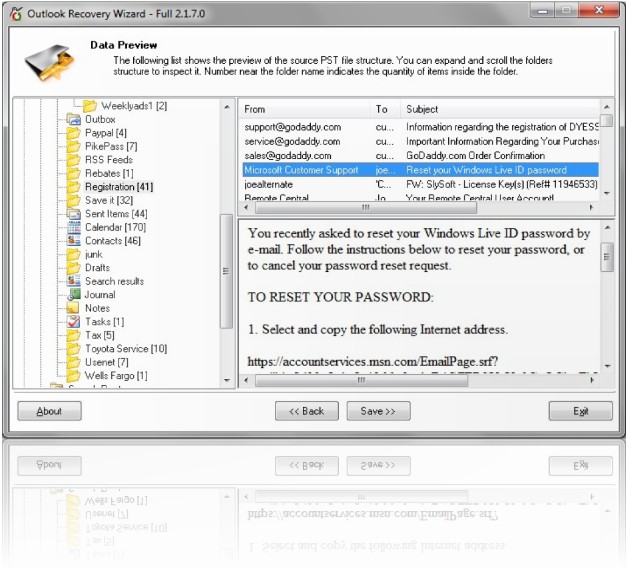
- Press Next button to see the data preview. If you evaluate the Outlook Recovery Wizard, please inspect the data preview very carefully and make sure that the recovery result is satisfied for you. Top
- Press Save button and Outlook Recovery Wizard will start saving.
Now you may open target PST file in Outlook to use and organize data. Start MS Outlook, select File | Open | Outlook Data File and browse to the recovered PST file. Press OK button and recovered PST will be opened as the second User Data Storage inside Outlook.
Convert OST to PST
OST to PST Conversion can be performed using the same Outlook Repair instruction. You just need to select the source OST file and process the recovery. It is recommended to run the processing with “Skip data preview page” option turned ON. With Outlook Recovery Wizard you may convert OST format to PST, reformat the PST or OST file to defragment and optimize it or convert the version of the PST file.